
If you’ve just got your hands on a DJI camera, you’re probably eager to start capturing amazing photos and videos. But how do you get started quickly and make the most of all its features?
This guide will walk you through everything you need to know about using your DJI camera—from powering it on and basic shooting tips to unlocking advanced modes and connecting with the DJI Mimo app. Whether you want smooth cinematic shots, easy subject tracking, or quick sharing, you’ll learn simple, step-by-step instructions that anyone can follow.
Keep reading, and soon you’ll be shooting like a pro with your DJI camera.
You May Like

- Capture Stunning Footage – This vlogging camera features a 1-inch CMOS…
- Effortlessly Frame Your Shots – Get the ideal composition with Osmo Pocket…
- Ultra-Steady Footage – Say goodbye to shaky videos. Osmo Pocket 3’s…
- Create Captivating Vlogs With ActiveTrack 6.0 – Stay effortlessly in focus…

- Sharper Action, Brighter Details – Osmo Nano’s 1/1.3″ sensor captures…
- Ultra-Wide 4K Clarity – Record every moment in 4K/60fps with a 143°…
- Effortless Portability & Versatility – The lightweight, magnetic Osmo Nano…
- Vivid Cinematic Colors – Osmo Nano delivers vibrant, lifelike footage with…
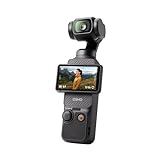
- Capture Stunning Footage – This vlogging camera features a 1-inch CMOS…
- Effortlessly Frame Your Shots – Get the ideal composition with Osmo Pocket…
- Ultra-Steady Footage – Say goodbye to shaky videos. Osmo Pocket 3’s…
- Create Captivating Vlogs With ActiveTrack 6.0 – Stay effortlessly in focus…

- Capture Every Scene, Day or Night – Variable aperture f/2.0 [1]–f/4.0…
- Detailed Action in Every Frame – The all-new 1/1.1″ square sensor boosts…
- Reliable Power in Any Weather – Shoot up to 4 hours in normal conditions,…
- Pro-Level Sound Made Easy – Connects two DJI microphone transmitters [5]…

- Essential Combo With Streamlined Accessories – The most cost-effective…
- Pro-Grade Night & Dynamic Imaging – Discover breathtaking imaging quality…
- Always Centered, Always Focused – Achieve pinpoint accuracy with our…
- Go Hands-Free with Voice Control – With voice commands always on standby…
Powering On And Setup
Setting up your DJI camera is the first step to capturing stunning photos and videos. The process involves powering on the device, inserting the memory card, and connecting it to the DJI Mimo app. Each step is simple and ensures your camera works smoothly.
Turning The Camera On
To turn on the DJI camera, press and hold the power button. The button is usually on the side or near the shutter. Some models also turn on when you rotate the screen. Wait a few seconds for the camera to start. You will see the screen light up and the camera will be ready to use.
Inserting The Sd Card
The camera needs an SD card to save photos and videos. Find the microSD card slot on the side or bottom of the camera. Insert the card with the metal contacts facing the back of the camera. Push it gently until it clicks into place. Make sure the card is properly seated to avoid errors.
Connecting To Dji Mimo App
Download the DJI Mimo app on your smartphone from the app store. Turn on Wi-Fi and Bluetooth on your phone. Open the app and follow the instructions to connect your DJI camera. This connection allows you to control the camera remotely and access more features. The app also helps with firmware updates and easy sharing of your content.
Basic Shooting Techniques
Basic shooting techniques form the foundation of using your DJI camera effectively. Learning these simple steps helps you take clear photos and smooth videos. This section explains how to capture photos and videos, switch between shooting modes, and use zoom controls with ease. Each part is designed to help you get the best results from your DJI camera.
Capturing Photos And Videos
Power on your DJI camera by holding the power button or rotating the screen. Use the red shutter button to take photos or start recording videos. Press it once for photos and press again to stop recording videos. Make sure your camera is steady to avoid blurry images. Hold the camera firmly or use a tripod for more stability.
Switching Between Modes
Swipe the screen left or right to switch between shooting modes. Choose from Photo, Video, Slow Motion, or Subject Tracking modes. Each mode adjusts the camera settings automatically for different effects. Check the screen to confirm your selected mode before shooting.
Using Zoom Controls
Pinch the screen or use the zoom buttons to zoom in and out smoothly. Zoom slowly to keep your video steady and avoid sudden jumps in the frame. Digital zoom may reduce image quality, so use it carefully. Optical zoom, if available, keeps the image clear while zooming.
Camera Modes And Features
DJI cameras offer various modes and features to capture stunning videos and photos. Understanding these options helps you get the best from your device. The camera modes allow you to switch between shooting styles quickly. Features like subject tracking and webcam mode add versatility to your filming experience.
These tools make filming easier and more creative. Whether capturing fast action or streaming live, the camera adapts to your needs. Let’s explore some key modes and how to use them effectively.
Subject Tracking With Activetrack
ActiveTrack lets the camera follow a moving subject automatically. Select the subject on the screen, and the camera keeps it centered. This mode works well for sports, pets, or moving people. It reduces the need to adjust the camera manually.
To use ActiveTrack, switch to the tracking mode on the camera or app. Tap the subject you want to track. The camera locks on and adjusts its movement smoothly. This keeps your footage steady and focused on the action.
Enabling Webcam Mode
Webcam mode turns your DJI camera into a high-quality webcam. Connect the camera to your computer using a USB cable. Then, switch to webcam mode in the camera settings. Your computer will detect the DJI camera as a video input device.
This feature is perfect for video calls, streaming, or online meetings. It offers better image quality than most built-in webcams. Make sure to install any required drivers or software from DJI for seamless use.
Advanced Settings And Customization
Advanced settings and customization in your DJI camera let you capture footage exactly how you want. These options give control over image quality, lighting, and camera movement. Adjusting these settings improves your videos and photos significantly. Below are key features to help you get the most out of your DJI camera.
Adjusting Resolution And Frame Rate
Resolution determines the sharpness of your video or photo. Higher resolution means clearer images but uses more storage. Frame rate controls how smooth your video looks. Common frame rates are 24, 30, and 60 frames per second (fps). Choose 24fps for a cinematic feel and 60fps for smooth action. Adjust these settings in the camera menu or DJI Mimo app. Select resolution and frame rate based on your project needs.
Configuring Iso And Exposure
ISO affects the camera’s sensitivity to light. Lower ISO values produce less noise and clearer images. Higher ISO helps in low light but can add grain. Exposure controls how bright or dark your image appears. You can adjust exposure compensation to brighten or darken your shot without changing other settings. Experiment with ISO and exposure to balance light and detail in different environments.
Using Gimbal Controls
The gimbal stabilizes your camera for smooth footage. Use gimbal controls to adjust tilt, pan, and roll angles. You can set follow modes or lock the gimbal to maintain a fixed direction. Customizing gimbal behavior helps create professional shots like tracking or panoramic views. Access these controls through the DJI app or directly on your camera for precise handling.
Using The Dji Mimo App
The DJI Mimo app enhances your DJI camera experience. It offers easy control over settings and quick access to features. The app also helps manage your footage and keeps your device updated. Using the app makes shooting and editing smoother and more fun.
Connecting Your Device
First, download the DJI Mimo app from your app store. Turn on your DJI camera. Enable Wi-Fi and Bluetooth on your phone. Open the app and tap the camera icon on the home screen. Select your camera model from the list. Follow the on-screen steps to pair your device. Once connected, you can see the live camera view on your phone.
Firmware Updates
Firmware updates improve your camera’s performance and add new features. The app notifies you when an update is available. Connect your camera and phone, then go to the update section in the app. Download and install the update carefully. Keep your camera powered during the process. Regular updates keep your device running smoothly.
Editing And Effects
The DJI Mimo app has built-in editing tools. You can trim videos, add music, and apply filters. Select your footage in the app’s gallery. Choose from different effects to enhance your video style. Adjust brightness, contrast, and saturation with simple sliders. Save your edits and share your creations directly from the app.

Credit: www.youtube.com
Pro Tips For Stunning Shots
Capturing stunning shots with your DJI camera requires more than just pointing and clicking. Small adjustments and thoughtful care can make a big difference in your photos and videos. These pro tips help you get the best from your DJI camera, enhancing every frame you capture. Focus on battery life, audio quality, and creative effects to lift your work to the next level.
Optimizing Battery Life And Charging
Keep your DJI camera ready by managing battery use wisely. Turn off the camera when not in use to save power. Lower screen brightness and close unnecessary apps. Use original chargers and cables for safe, fast charging. Charge batteries fully before shooting. Carry extra batteries for long sessions. Avoid charging in very hot or cold places to protect battery health.
Improving Audio Quality
Good sound makes your videos more engaging. Use an external microphone if possible for clearer audio. Shield the camera microphone from wind with a foam cover or windscreen. Place the camera close to the sound source. Check audio levels in the settings to avoid distortion. Record a test clip to ensure sound is clear before you start filming.
Applying Filters And Glamour Effects
Filters and effects add style and mood to your shots. Use the DJI Mimo app to explore built-in filters. Adjust brightness, contrast, and saturation to fit your scene. Glamour effects smooth skin tones and brighten faces in portraits. Apply effects subtly to keep images natural. Experiment with different looks to find your favorite style.
Viewing And Exporting Media
Viewing and exporting media from your DJI camera is simple and efficient. You can quickly check your photos and videos directly on the camera. Exporting these files to your computer or smartphone is also straightforward. This section guides you through these key steps to manage your media effortlessly.
Previewing Photos And Videos
Turn on your DJI camera to access the media gallery. Tap the playback icon on the touchscreen to open stored photos and videos. Swipe left or right to browse through your captures. Use pinch gestures to zoom in on photos for closer details. Videos play smoothly with touch controls to pause or resume. Previewing helps you review your shots before exporting or editing.
Exporting Files From The Camera
Connect your DJI camera to a computer using a USB cable. The camera will appear as a removable drive on your computer. Open the folder labeled DCIM to find your photos and videos. Copy the files to your desired folder on the computer. Alternatively, connect the camera to your smartphone via the DJI Mimo app. Use the app’s transfer feature to export files wirelessly. This method saves time and keeps your media organized.

Credit: www.amazon.com

Credit: www.amazon.com
Frequently Asked Questions
How To Use Dji Camera For Beginners?
Power on the DJI camera by holding the power button or rotating the screen. Insert a microSD card. Press the red shutter button to capture photos or videos. Swipe the touchscreen to switch modes and adjust settings. Connect the DJI Mimo app for advanced controls and updates.
How To Connect Dji Camera To Phone?
Power on the DJI camera. Enable Wi-Fi and Bluetooth on your phone. Open the DJI Mimo app and tap the camera icon. Follow on-screen prompts to complete the connection.
How Do I Activate My Dji Camera?
Press and hold the power or Quick Switch button to turn on the DJI camera. Enable Wi-Fi and Bluetooth on your phone. Open the DJI Mimo app, tap the camera icon, and follow on-screen instructions to complete activation.
How To View Photos On Dji Camera?
Open the DJI Mimo app and tap the camera icon. Connect your DJI camera, then tap the Playback icon to view photos.
Conclusion
Using a DJI camera becomes easy with simple steps. Power it on and choose your shooting mode. Press the red button to capture photos or record videos. Swipe the screen to explore different modes and settings. Connect the camera to the DJI Mimo app for more features.
Practice often to improve your skills and get better shots. Enjoy capturing moments clearly and smoothly with your DJI camera. Keep your device updated to access the latest functions. Have fun creating great videos and photos every time you shoot.


